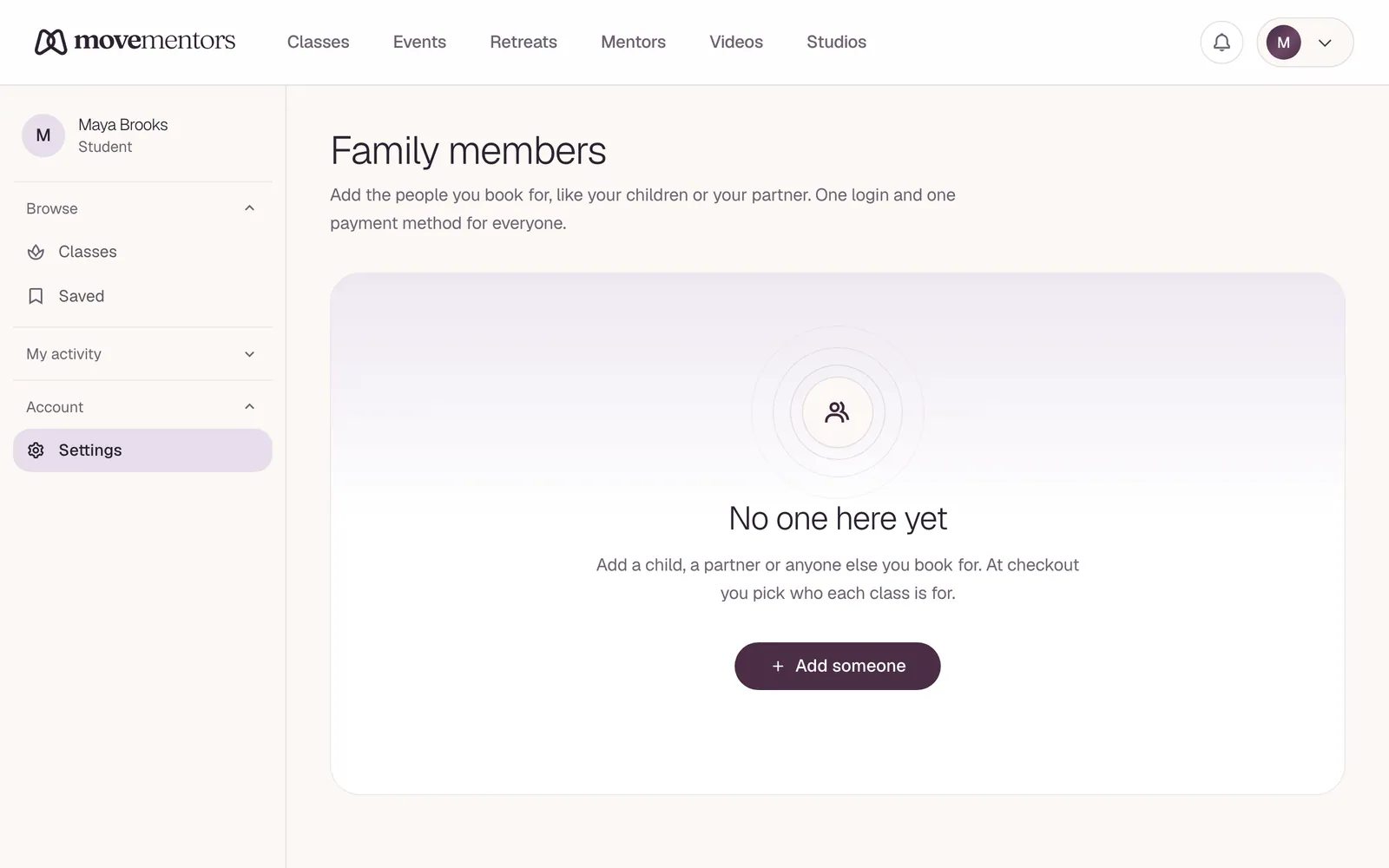
You can book classes for the people you look after, like your kids or your partner, without creating a separate account for each of them. Add them as family members on your MoveMentors account, then choose who each booking is for when you book. Everyone is managed under your one login.
Add a family member
- Go to Settings and open Family members.
- Select Add member.
- Enter their Name. You can also add a relationship (for example "Daughter"), a date of birth, whether This person is a minor, and notes.
- Select Save.
You can add up to 25 members, and edit or remove them at any time.
Book for a family member
When you book a class, event or retreat while signed in, you'll see Who is this for? Choose Myself or a family member, then finish the booking as normal.
The teacher sees the family member's name on their list, so they know who is coming to class, while the booking, the payment and the confirmation stay with you.
Family members can't be chosen for private sessions booked from a teacher's open times.
Notes about a family member
The Notes for mentors (optional) field is for things like "knee injury, prefers the front of the room". These notes stay on your account and aren't shown to the teacher on bookings. If something matters for a class, add it to Notes for the mentor (optional) on the booking form, or tell the teacher directly.
Removing a member
Removing a member takes them off your Who is this for? list. Their past bookings stay intact, so your history and the teacher's records are unaffected.