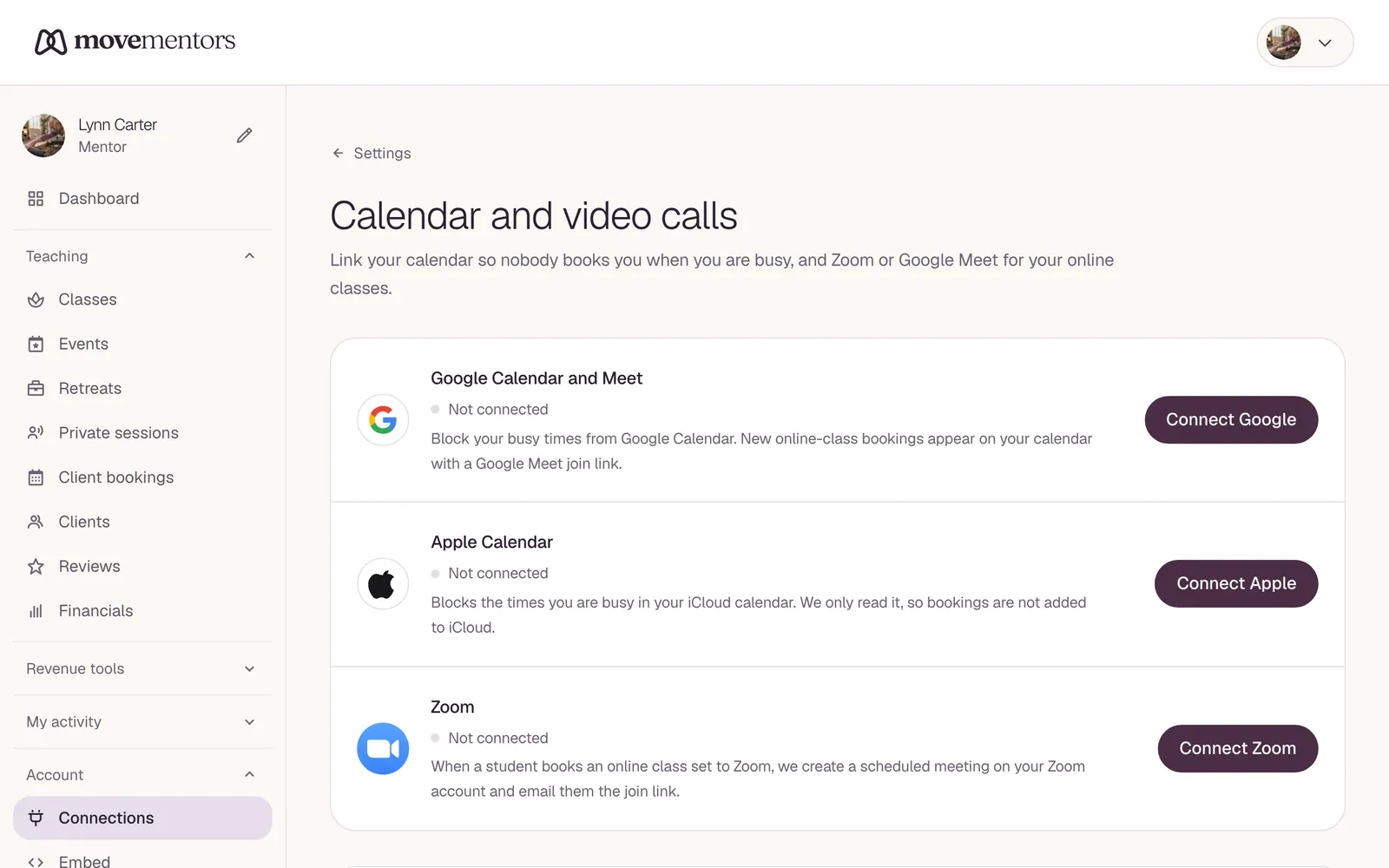
The Connections page at /mentor/settings/connections is where you link your calendar and video accounts to MoveMentors. Three connections live there: Google Calendar and Meet, Apple Calendar and Zoom. They're available on every plan, Free included.
Online classes, which use the Google Meet or Zoom connection, are a Pro and Premium feature. Free online classes need nothing more. Paid online classes also need Stripe connected, because students pay for them by card. See Online classes and plans and prices.
What each connection does
| Connection | What MoveMentors reads | What MoveMentors creates |
|---|---|---|
| Google Calendar and Meet | The events on your connected Google calendar for the next 30 days. Each busy event blocks the same time on MoveMentors, so clients can't book you then | A calendar event with a Google Meet link when a booking confirms on an online class set to Google Meet. Nothing else is added |
| Apple Calendar | The events on your iCloud calendars (for example Home and Work) for the next 30 days. Each busy event blocks the same time on MoveMentors, so clients can't book you then | Nothing, Apple Calendar is read only |
| Zoom | Your basic Zoom profile | A Zoom meeting on your account when a booking confirms on an online class set to Zoom |
You can connect any combination. If you connect both Google and Zoom, you pick which one runs each online class.
Google Calendar and Meet
Open the Connections page
Go to /mentor/settings/connections.
Click Connect Google
You're sent to Google's permission screen.
Pick your Google account and allow access
We ask for two permissions: to read your calendar events (so your busy times block bookings), and to create events (for online bookings and their Meet links). Nothing more.
Once connected, the Google row shows the account you connected. From then on, MoveMentors does two things with it:
- It blocks your busy times. Events on your Google Calendar block the same times on MoveMentors, so clients can't book you while you're at the dentist or teaching somewhere else. See Busy times and Sync now below.
- It adds your online bookings. When a booking confirms on one of your online classes set to Google Meet, MoveMentors adds an event with a Meet link for that booking to your Google Calendar. The student gets the link in their confirmation email and on their booking page.
In-person bookings aren't added to your Google Calendar. To see everything you teach in another calendar, use Export Calendar on the Connections page (see Other calendar apps below).
Busy times and Sync now
Under the Google row there's a panel called Busy times from Google Calendar. It shows:
- when MoveMentors last synced with Google
- how many busy times are blocked in the next 30 days
- the next few, with their title and time
MoveMentors reads your Google Calendar right after you connect, then on its own every 15 minutes. If you've just added something and want it blocked straight away, click Sync now. Sync now only brings your busy times in from Google. It doesn't send your MoveMentors classes or bookings to Google.
If you move or delete an event in Google, the block moves or goes away at the next sync.
Only events on the calendar named on the Google row count. These don't block anything:
- Events marked Free in Google (the event's "Show as" setting)
- All-day events, such as holidays or birthdays
- Cancelled events
- The Meet events MoveMentors adds for your online bookings, so one booking never blocks the rest of your class
- Sessions from your own MoveMentors calendar file (Export Calendar) that you imported into Google, so your classes never block themselves
If you click Disconnect on the Google row, MoveMentors also removes its access from your Google account, and all the busy times imported from Google are removed, so those times open up for booking again.
Apple Calendar
Apple doesn't let other apps use your normal Apple ID password for iCloud Calendar. Instead, you create an "app-specific password" in your Apple account and paste it into MoveMentors. Two-factor authentication must be turned on for your Apple ID before you can create one.
Sign in at appleid.apple.com
Use the same Apple ID you use for iCloud Calendar.
Open Sign-In and Security
It's in the sidebar.
Click App-Specific Passwords
If you don't see this option, two-factor authentication isn't turned on for your Apple ID. Turn it on first, then come back.
Create a new app-specific password
Click the add button to start.
Label it MoveMentors and click Create
Apple may ask for your Apple ID password again to confirm.
Copy the password Apple shows you
It looks like
xxxx-xxxx-xxxx-xxxx. Apple shows it only once. If you lose it, create a new one and revoke the old one.Connect it in MoveMentors
On the Connections page, click Connect Apple. Enter your Apple ID and the app-specific password you just copied, then confirm.
If connecting fails, the most common reasons are:
- Wrong password: it must be the
xxxx-xxxx-xxxx-xxxxapp-specific password, not your normal Apple ID password. - Two-factor authentication not turned on: see step 3.
- Password expired or revoked: Apple cancels app-specific passwords when you change your Apple ID password or revoke them. Create a new one.
Busy times from Apple Calendar
Once connected, MoveMentors reads every iCloud calendar that holds events, for example Home and Work. Reminders lists, calendars you subscribe to (such as public holidays) and the iCloud inbox are skipped. Events in the next 30 days block the same times on MoveMentors, so clients can't book you then.
Under the Apple row there's a panel called Busy times from Apple Calendar. It shows:
- when MoveMentors last synced with iCloud
- which iCloud calendars it reads, for example "Reading your iCloud calendars: Home, Work"
- how many busy times are blocked in the next 30 days
- the next few, with their title and time
It works like the Google panel above: MoveMentors reads iCloud right after you connect, then on its own every 15 minutes, and straight away when you click Sync now. A repeating event blocks every time it happens. The same events are left out as for Google: events marked Free (Show As: Free), all-day events, cancelled events, and sessions from your own MoveMentors calendar file that you imported into iCloud.
If iCloud can't be reached for a while, the busy times you already have stay in place until the next sync that works. If your app-specific password stops working, syncing stops until you click Disconnect on the Apple row and connect again with a new app-specific password.
MoveMentors never adds, changes or deletes anything in iCloud. Apple Calendar is read only.
Disconnect Apple
Click Disconnect on the Apple row. MoveMentors deletes your stored Apple ID, the app-specific password and all the busy times imported from iCloud, so those times open up for booking again.
The app-specific password itself keeps working at Apple until you revoke it. Only you can do that: sign in at appleid.apple.com, open App-Specific Passwords and revoke the MoveMentors one.
Zoom
The MoveMentors Zoom integration creates a Zoom meeting on your account whenever a booking confirms on an online class you've set to Zoom. You add, use and remove the app from MoveMentors.
Add Zoom (connect)
Have a Zoom account
A free Zoom account works, but Zoom limits meeting length on some of its plans. If your classes run long, check Zoom's current plans at zoom.us.
Click Connect Zoom
On /mentor/settings/connections, click Connect Zoom. You're sent to Zoom's permission screen.
Allow the requested permissions
Three permissions: create meetings on your account (
meeting:write:meeting), read meeting details (meeting:read:meeting), and read your basic profile (user:read:user) so the Connections page can show which Zoom account is connected. Nothing else.You're done
You come back to MoveMentors, and the Zoom row shows Connected as with your name.
Use Zoom (per class)
For each online class, you pick Google Meet or Zoom. If you've only connected one of the two, that one is used automatically and no picker is shown.
When a booking confirms on a Zoom class, MoveMentors:
- Creates a scheduled meeting on your Zoom account for that booking, with join before host turned on and no waiting room.
- Sends the join link in the booking confirmation email.
- Shows the link on the student's booking page and on your session page.
Remove Zoom (disconnect)
Open the Connections page
Go to /mentor/settings/connections.
Click Disconnect on the Zoom row
We delete your stored Zoom tokens straight away and stop creating new meetings.
Optionally remove the app in Zoom too
Sign in at marketplace.zoom.us, go to Manage, then Added Apps, and remove MoveMentors.
Meetings already created on your Zoom account stay there; we don't delete them. To clean them up, do it from your Zoom account.
What we store
- Google: the access tokens Google gives us.
- Apple: your Apple ID and the app-specific password.
- Zoom: the access tokens Zoom gives us.
All of them are stored encrypted (AES-256-GCM). Clicking Disconnect on the Connections page deletes them. For Google, it also removes MoveMentors from your Google account's third-party connections. For Apple, only you can revoke the app-specific password, at appleid.apple.com. You can also revoke access at any time from each provider's settings:
- Google: myaccount.google.com, then Security, then your third-party connections
- Apple: appleid.apple.com, then App-Specific Passwords, and revoke the MoveMentors one
- Zoom: marketplace.zoom.us, then Manage, then Added Apps, and remove MoveMentors
For Google and Apple, we also keep the title and time of each busy event we import, so we can block those times and list them in the busy-times panel. They're deleted when you disconnect that calendar.
What happens when
- A booking confirms on an online class: the Meet or Zoom link is created and sent in the confirmation email. For Google Meet classes, the event is added to your Google Calendar.
- You add, move or delete an event in Google Calendar or on your iCloud calendars: the busy time on MoveMentors is added, moved or removed at the next sync, within 15 minutes, or straight away when you click Sync now.
- A booking is cancelled, or a session moves: your Google Calendar event isn't changed automatically. Update or delete it in your calendar.
- You disconnect: events already on your calendar stay, no new ones are added, and your stored credentials are deleted. For Google, MoveMentors' access to your Google account is revoked. For Google and Apple, the busy times imported from that calendar are removed too.
Other calendar apps
Export Calendar on the Connections page downloads a calendar file (.ics) you can import into Outlook, Google Calendar, Apple Calendar or any other calendar app. Choose Teaching Schedule (classes you teach) for your own sessions, or My Bookings (classes you've booked) for classes you've booked as a student. The file covers the next three months, so export again when your schedule changes.
Students get a calendar file with their confirmation email, so they can add the class to their own calendar.
Common questions
Can I sync with Outlook? Not directly. Use Export Calendar on the Connections page and import the file into Outlook. Export again when your schedule changes.
My calendar events show the wrong time. Most likely your calendar is set to a different time zone from the class. The event is saved in the class's time zone and your calendar converts it to yours, which can look off when you travel. If you've moved for good, change the time zone in your calendar app.
The connection stopped working. The most common cause is that access expired or was revoked on the provider's side. Disconnect and connect it again on /mentor/settings/connections. For Apple, create a new app-specific password first.
Why isn't a calendar event blocking my time? Check that the event isn't marked Free, isn't an all-day event, and is on a calendar MoveMentors reads: for Google, the calendar named on the Google row; for Apple, one of the iCloud calendars listed in the Apple panel. Then click Sync now. More in Calendar sync issues.
Can my in-person bookings appear on my calendar too? Google Calendar only receives bookings for online classes (so the Meet link lives on the event). For in-person classes, use Export Calendar and import your teaching schedule.
Do the video providers limit meeting length? They can, depending on your plan with them. Check the current limits on Zoom's and Google's own sites before a long class.
Next steps
- Online classes: creating classes that run on Google Meet or Zoom.
- Calendar sync for students: what students see.
- Calendar sync issues: fixing a connection that stopped working.