To book, open the class page, pick a session and select Continue to booking. Fill in the booking form, choose how to pay and confirm. Card bookings are confirmed once your payment goes through. Bookings you pay the teacher for directly, and free ones, are confirmed straight away. You don't need an account to book.
The class page
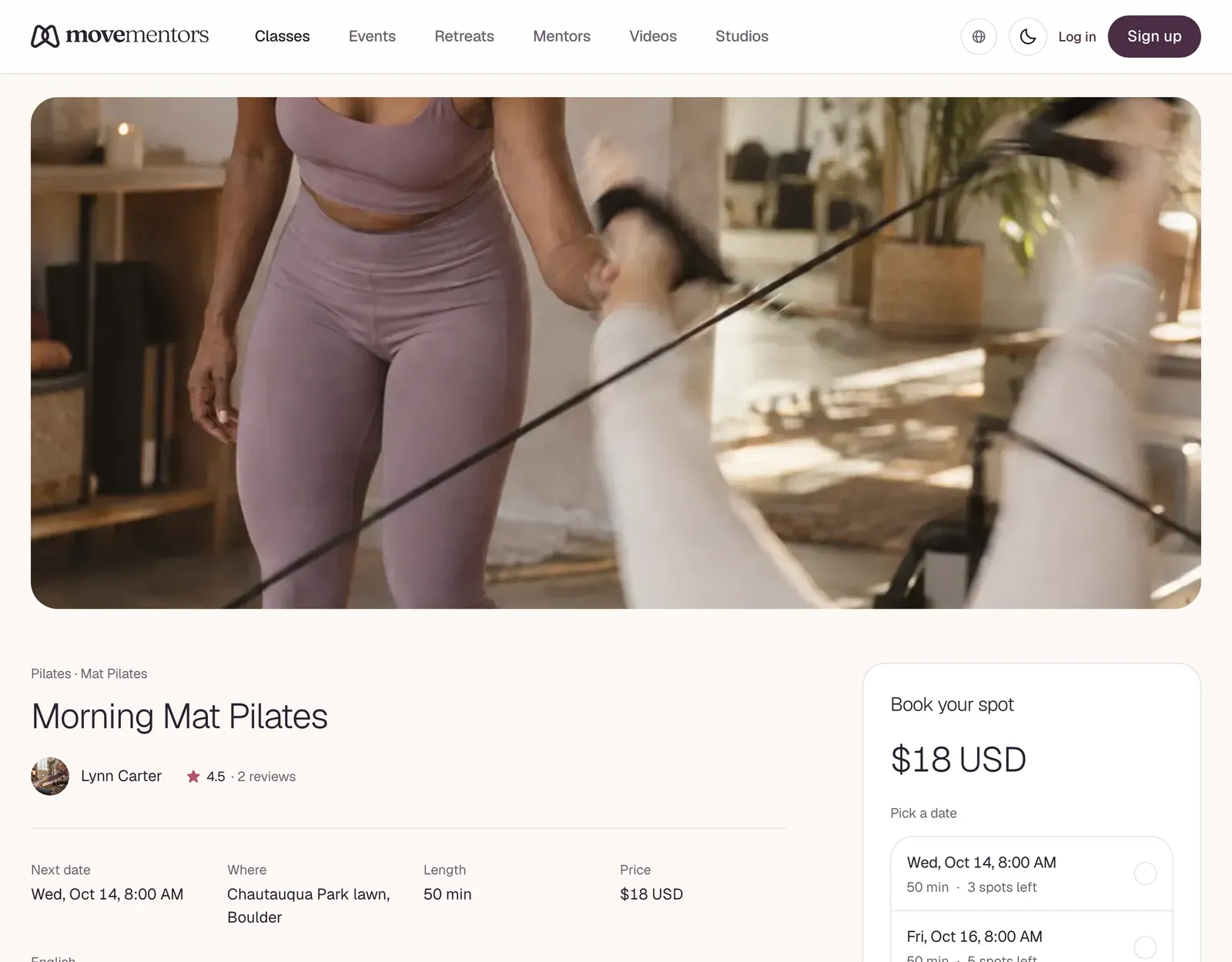
Each class has its own page on the teacher's profile, at an address like /<city-country>/<mentor-slug>/<class-slug>. Depending on the class, it shows:
- About this class, with the details the teacher wrote
- What's included and What to bring
- Location, with a map, or for online classes, whether it runs on Google Meet or Zoom
- Reviews from past students
- A booking panel with the upcoming sessions, the price, the cancellation policy and the payment methods the teacher accepts
For some venues, the exact address is shared after booking.
From the booking panel you can also Save class to find it later on your Saved page, or Gift this class to someone else. See Gift a class.
Picking a session
The Book a session panel lists the upcoming sessions. Pick the one you want and select Continue to booking. A session with no seats left shows Fully booked, and if the teacher has a waitlist you can Join waitlist instead.
You can book any session that hasn't started yet, as long as there's room. Each booking is for one session.
Choosing how many people
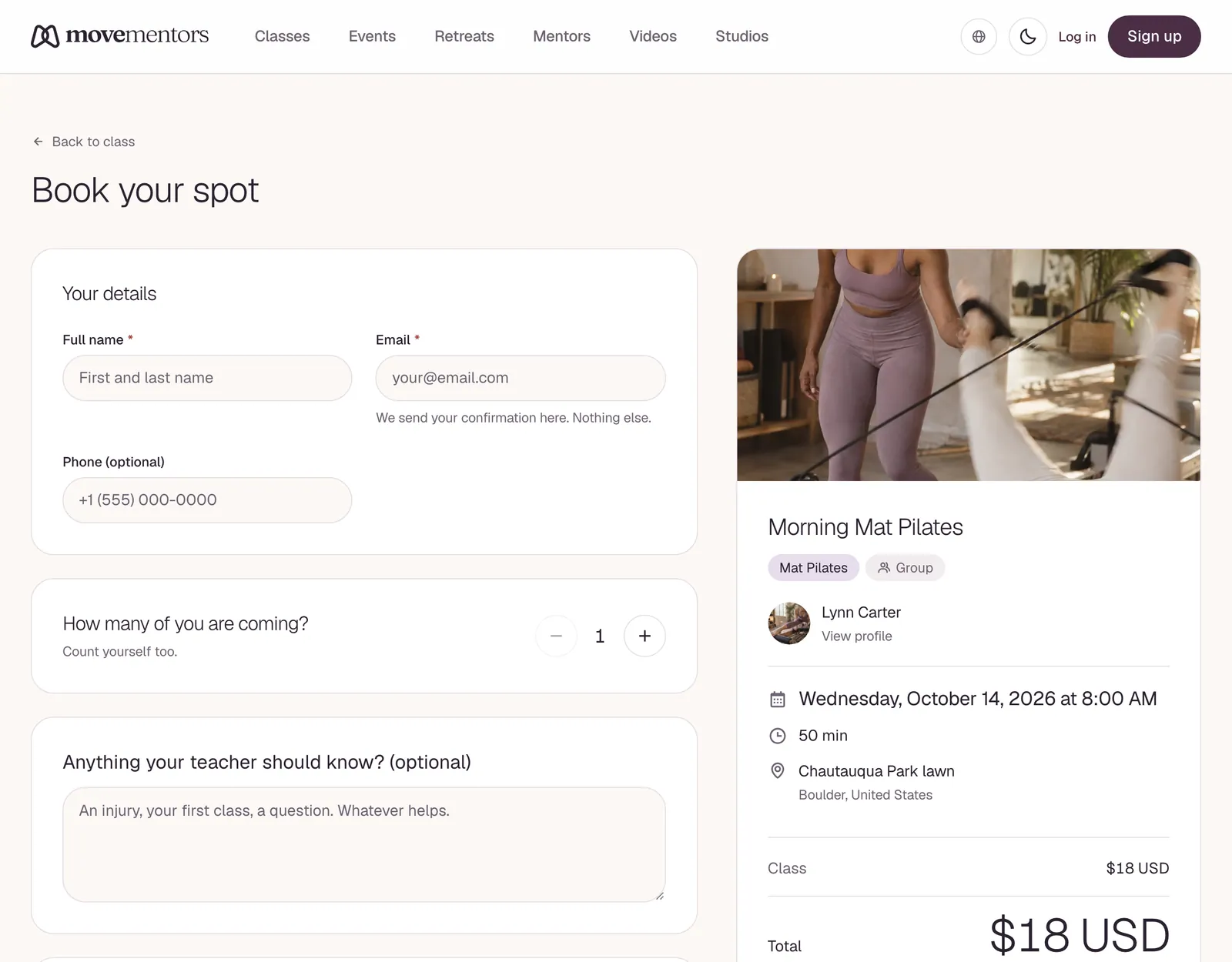
On group classes you can book for other people too. Use How many people? to set the number, counting yourself, up to 20 or the seats left. For each extra person, add their full name. Their email is optional. See Bringing a group.
Booking for a family member
If you're signed in and have added family members to your account, choose who the booking is for under Who is this for? See Booking for your family. The confirmation and reminder emails, and the calendar entry, say whose spot it is.
Picking add-ons
If the teacher offers add-ons, such as a mat rental, they're listed under Add-ons with their prices. Choose how many of each you want, and they're added to your total. See Add-ons and equipment.
Filling in your details
If you're signed in, the booking uses your account. If not, enter your full name and email; your phone number is optional. The confirmation goes to the email you enter. Some teachers who send text reminders ask you to verify your phone number before you can book.
There's also a space for Notes for the mentor (optional), for anything the teacher should know before class.
As a guest, you can tick a box to create a MoveMentors account at the same time. An account lets you:
- See and manage all your bookings on My Bookings.
- Leave a review after class.
- Use class packs, memberships, promo codes and gifts, and book for family members.
If you booked as a guest and later create an account with the same email, your guest bookings are added to it.
Prices and discounts
Depending on the class, the booking form may also offer:
- A Local and a Tourist rate. Pick the one that applies to you.
- Pay what you can: choose your own amount per person, at or above any minimum the teacher set.
- I have a promo code, if you're signed in.
- Add a tip, which is optional.
If more than one discount could apply, such as an early-bird price, a promo code or a class pack, you get the one that saves you the most.
If you have a membership with the teacher, the form tells you whether it covers this class, the same way it does for a class pack. If it doesn't, it says why: the membership is paused, the class isn't included, or you've used up your bookings for this cycle.
Choosing a payment method
The form lists the payment methods the teacher accepts for this class:
- Pay now with card: you pay on Stripe's secure checkout page.
- A direct method, such as cash, bank transfer, PayPal, Venmo, Cash App, Zelle, Wise, crypto or card in person: you pay the teacher yourself.
Paid online classes can only be paid by card; free online classes need no payment. See Payment methods for how each one works.
Confirming the booking
Tick the box to agree to the cancellation policy, then select the button at the bottom of the form. It reads Confirm booking for a free class, or Reserve and pay via followed by the method you chose.
If you pay by card
Stripe's checkout page opens, and your spot is held for 30 minutes while you pay. When the payment goes through, your booking is confirmed and your confirmation email goes out.
Until then, your booking page says "Finish paying to confirm your spot" and lets you pay from there. If 30 minutes pass without payment, the spot is released and nothing is charged.
If your card is declined, Stripe's page tells you, and you can try another card while the spot is held.
If you pay the teacher directly
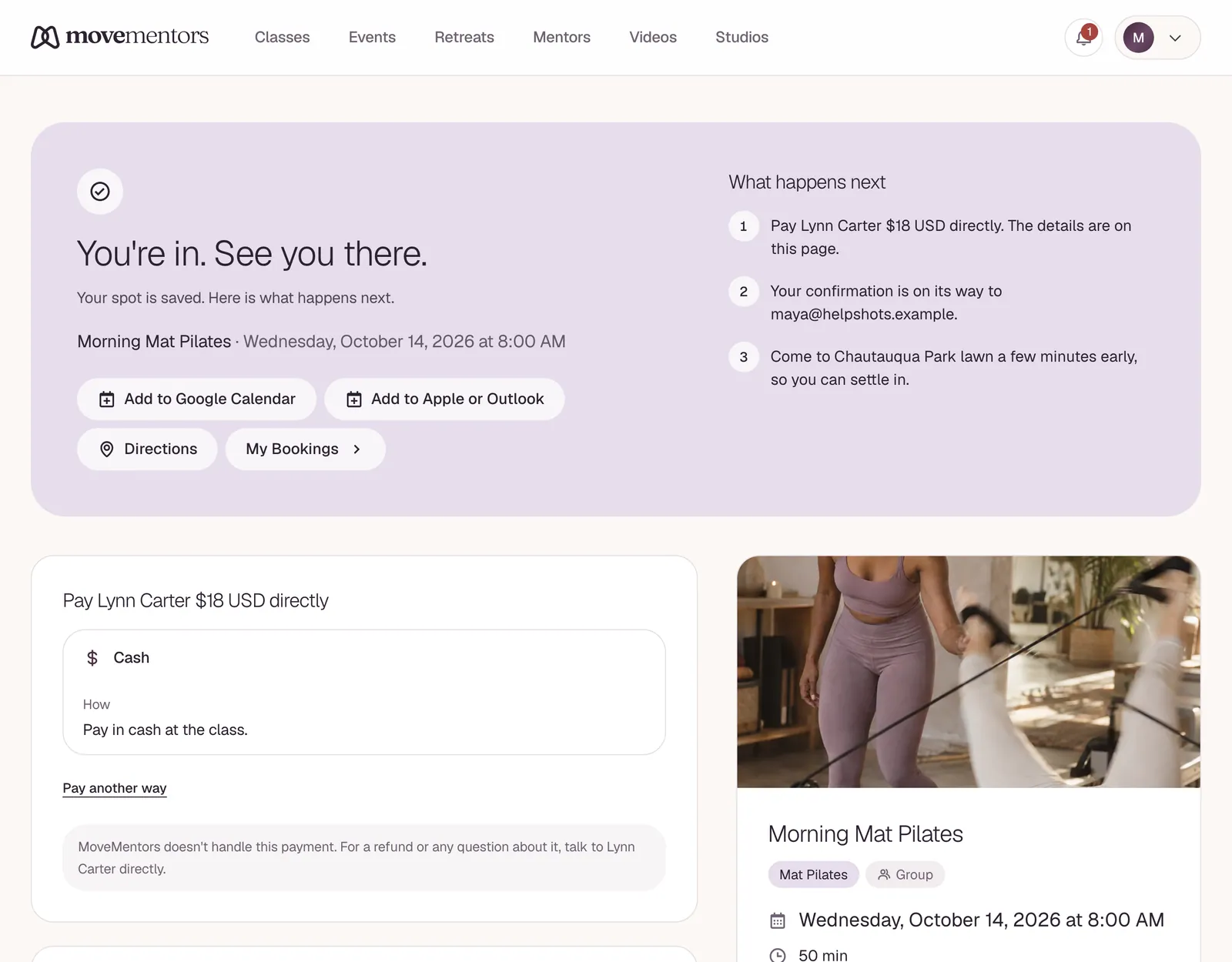
Your booking is confirmed straight away. Your confirmation email shows how to pay the teacher with the method you chose. The teacher marks the booking as paid when the money arrives.
Free classes and class packs
Free bookings, and bookings covered by a class pack, are confirmed straight away.
When does the confirmation email arrive?
For card payments, once your payment goes through. For everything else, as soon as you book.
After booking
Your confirmation email includes:
- The class, date, time and location, or the join link for an online class
- What to bring and what's included, if the teacher listed them
- For direct payments, how to pay the teacher
- A View booking button that opens your booking page directly
- A calendar file (.ics) to add the class to your calendar
If you added email addresses for the people you booked for, they get the confirmation too.
Your booking page has buttons to add the class to your calendar. Under Plans changed? you can Move to another day or Cancel booking. If you booked without an account, you don't sign in and you don't type your email: the View booking button in any email about your booking opens the page directly. That link is personal, so don't forward the email to someone who shouldn't be able to cancel for you. It stops working 48 hours after the class ends, and the page then offers to email you a fresh one. See Cancelling and refunds. If you booked with an account, sign in and find all your bookings on My Bookings.
You also get reminder emails about a day before the class and again shortly before it starts. You can turn them off with Session Reminders in your notification settings.
After a class, booking the next one takes one tap. Your booking page and your reminder and follow-up emails show Same class next week or Book again. It opens the class page with that date already picked. See all dates is there too, if you'd rather choose another.
When a booking fails
A few common messages and what they mean:
Not enough spots available Someone took the last seats while you were filling in the form. Pick another session, book for fewer people, or join the waitlist.
You already have a booking You've already booked this session. Find it on My Bookings or through the link in your confirmation email.
You can't book your own class You're signed in as the teacher of this class. Teacher accounts can book other teachers' classes, but not their own.
This session has been cancelled The teacher cancelled that session. Pick another date.
The selected payment method isn't available for this class Pick one of the other methods shown on the form.
This reservation was released The card payment wasn't finished within 30 minutes, so the spot was freed and nothing was charged. Book again if there's still room.
Common questions
Can I book a class that starts soon? Yes. You can book any session that hasn't started, as long as there's room.
Can I book several sessions of a class at once? No. Each booking covers one session. If you go often, some teachers offer class packs or memberships on their profile. See Class packs.
Can I move a booking to a different date? Yes, to another session of the same class. Select Move to another day, then pick the new session in Move your booking. You can move a booking as long as you could still cancel it for a full refund, or later if the teacher allows last-minute changes for that class.
Who gets paid if a class is listed with a teacher and a studio? Whoever created the class. The payment goes to them, using the payment methods they accept.
Next steps
- Curious about cancellation? Read Cancelling and refunds.
- Going with a friend? Read Bringing a group.
- Want the class in your calendar? See Calendar sync.