Your mentor profile is the single most-viewed page in your MoveMentors account. Almost every booking starts with someone landing on your profile from the directory, the homepage, social media, or a search result. This page walks through what each section looks like to a student and how to make it land.
The URL
movementors.com/<your-city>/<your-slug>. Example: movementors.com/berlin-de/sasha-king.
Use this URL everywhere: Instagram bio, business card, email signature, signs at the studio, posters at events.
Hero section
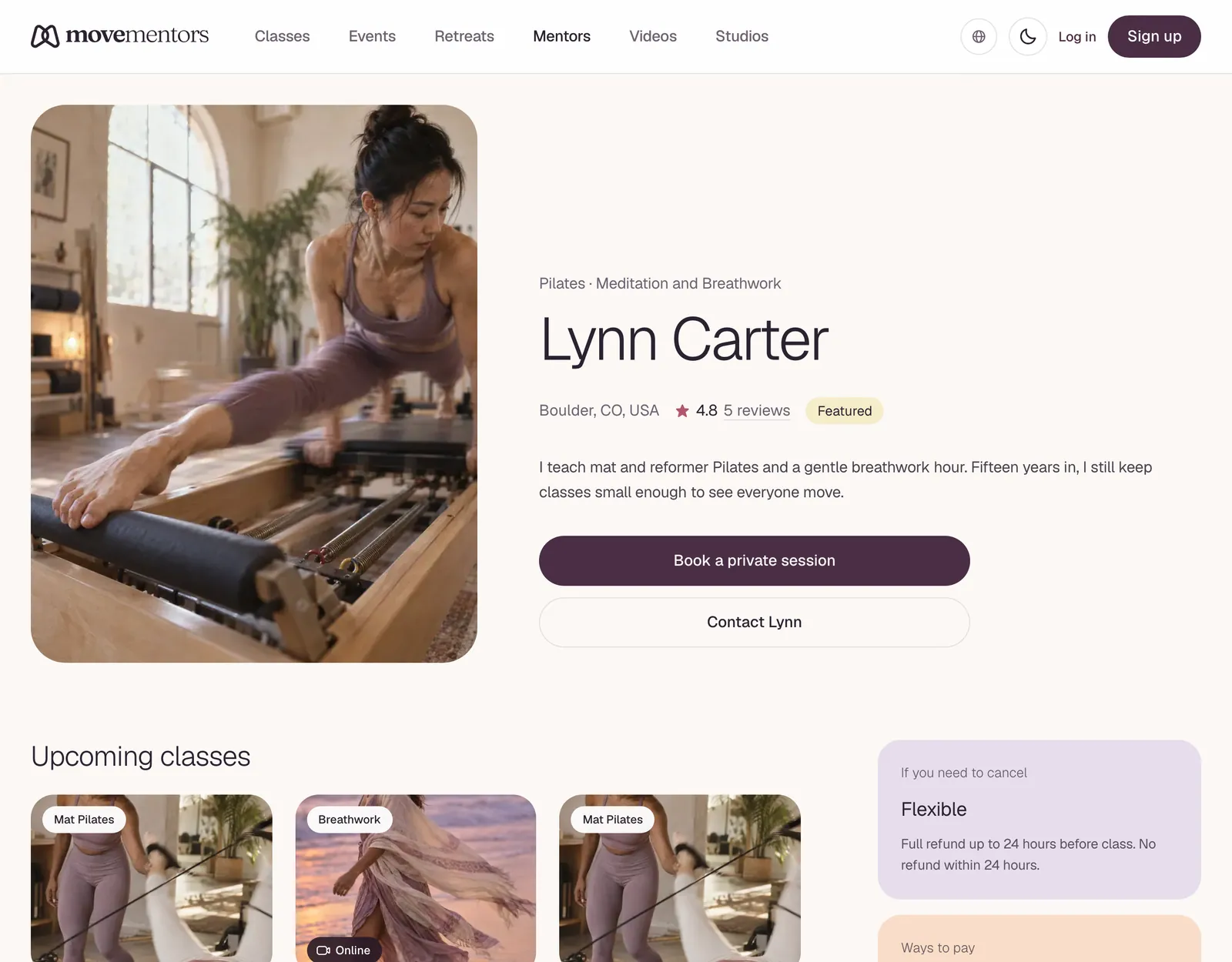
What students see first.
Profile photo. The biggest single conversion factor. A clear, well-lit photo of you doubles inquiry rate versus a blurry, dim photo. We have seen this in our own A/B comparisons. Specifics:
- Eye contact (or close to it).
- Natural light. Near a window if you can.
- Solo. Group photos make it harder to know which person to expect.
- Activity context is good but not required. A photo of you teaching is great; a clean headshot is also great. A photo of you at the beach in a swimsuit is less great for booking yoga classes.
- Smile or warm expression.
Display name. What people call you. "Sasha King" or "Sasha" or "Coach S" are all fine. Stage names are common in dance; pseudonyms in some yoga lineages. Pick one and stay consistent across your accounts.
City. The metro you anchor in. If you teach in two cities, list your primary one here and put the second on individual classes.
ID verified badge. Pro and Premium teachers who verify their identity with Stripe get a small checkmark next to their name.
Rating and reviews. Your average and count.
CTAs. "Book a class" (if you have upcoming classes) or "Send a message" (if you only do private sessions).
About / bio
The 200-600 word block you wrote in onboarding. Tips for a strong bio:
Open with what you teach
The first line of your bio should answer "what does this person teach?". Not your origin story; the practice itself.
- Bad: "Hi, I am Sasha. I have been on a journey of movement for 12 years."
- Good: "I teach vinyasa yoga with a strong alignment focus, suitable for intermediate practitioners."
You can do the origin story later in the bio. Lead with the practice.
Be specific about who it is for
Vagueness is the enemy. "All levels welcome" is technically true for many classes but tells a student nothing. Be specific:
- "Beginners welcome, especially if you have never done yoga before."
- "Best for students who have been practicing for at least a year."
- "Designed for people recovering from injury; we move slowly with modifications."
This filters in the right people and filters out the wrong ones. Both are good.
Mention training and lineage
For yoga, pilates, dance, and most movement modalities, lineage and training signal expertise. If you have done a 500-hour with a specific lineage, name them. If you trained with someone notable, mention them. This is not bragging; it is calibration.
Avoid vague claims ("trained extensively"). Specifics ("200-hour with Jessamyn Stanley, advanced restorative with Judith Hanson Lasater") land much harder.
Describe your teaching style
What is the energy of your class? Quiet and meditative? Loud and pumped up? Lots of cuing or minimal? Hands-on adjustments or hands-off?
People are deciding whether you are the right teacher for them based on this. Vague descriptions force them to guess. Specific descriptions help them self-select.
End with what you want them to know
A closing line that captures something distinctive. "My classes always end with a long savasana with a singing bowl" is the kind of detail that hooks a curious student.
Locations
The locations list shows on your profile with a map. For each location, students can:
- See the address on a map (with directions link).
- See which of your classes happen there.
- See any extra notes you added (parking, accessibility, what kind of space).
If you have one anchor location: keep it tight, no need to over-explain.
If you have multiple: name them clearly ("Studio Main", "Studio Annex") and make sure each class is attached to the right one.
See locations for managing multiple addresses.
Classes
The full upcoming class list. Each class is a card. The card draws from the class's own metadata: title, photo, next session, capacity, price.
A few things to optimise across all your class cards:
- Photos. Even more than your profile photo, class photos drive clicks. A photo of the actual practice (not a stock image) lands better.
- Titles. Concrete is better. "Vinyasa flow at sunset" is much more clickable than just "Yoga".
- Pricing. If you are uncertain, look at other mentors in your area. We do not enforce a minimum; you can charge $5 or $100. Most regular classes sit in the $15-30 range.
Accepted payments
The Accepted payments row shows which payment methods you accept. Students glance at this before booking. A profile that accepts only one method (e.g. cash on arrival only) signals a less professional setup; a profile with Stripe + a couple of backup methods signals seriousness.
If you connected Stripe, the row starts with Credit or debit card. It only appears once Stripe shows Charges: live on your Payment methods page; until then, students cannot pay you by card. If you take cards at class with your own reader, the row shows Card in person.
Reviews
Public, attached to the booking student. Mentors cannot delete reviews; they can respond.
A good review pattern:
- Many reviews. A profile with 80 reviews at 4.7 is more trusted than one with 4 reviews at 5.0. Volume wins.
- Recent reviews. Students discount reviews older than a year unless they are extreme. Keep teaching and the recency takes care of itself.
- Thoughtful responses. Replying to reviews (positive AND negative) signals you care. Negative reviews answered well often convert as many bookings as five-star reviews.
Certifications
Certifications display on your profile on every plan. Each one is a card with the certification name, the issuing body and a short description if you added one. The document itself stays private; only these details are public.
Each certification shows on your profile once it has been approved.
See certifications for the full process.
Things students notice that are easy to miss
- Your slug. A slug that is your full name converts better than a slug that is a brand or pseudonym, in most cases. People search by name.
- The ID verified badge. Pro and Premium teachers who verify their identity with Stripe get a small checkmark next to their name. Certifications don't add a badge.
Common questions
Can I have a private profile, hidden from search? No, there is no setting to hide your profile. You can hide a single class with Hide from public in its menu on your classes list. If you need your profile taken down, email support@movementors.com.
Can I have multiple slugs / vanity URLs? No, one slug per mentor. We considered allowing aliases for marketing but the SEO complexity is not worth the slight convenience.
Can I move my profile to a different city? Yes. Change your city in your profile editor at /mentor/profile/edit. The city part of your profile address changes, and links with your old city still lead to your profile.
Can I see who is viewing my profile? No. MoveMentors doesn't show who views your profile, or how many views it gets.
Next steps
- Certifications covers how to add them.
- Locations covers managing multiple venues.
- Creating a class is where the upcoming-class list gets populated.