Weekly class limit
Free mentor and studio accounts include 1 scheduled session per week, from Monday to Sunday in the account timezone (UTC if none is set). Each group class, private lesson or event date counts separately across all classes and locations, including dates in drafts. Recurring schedules can run once per week on Free. Cancelled sessions do not count. Bookings within a session are unlimited. Upgrade to Pro or Premium to schedule more than 1 session in a week. Existing scheduled sessions and bookings stay in place after a downgrade; adding more sessions requires an upgrade.
Schedules are the part of class creation that drives everything else: which dates are bookable, when reminders fire, what appears in the directory's "starts soonest" sort, and what shows up in your calendar.
The four schedule shapes
One-off
A single session at a specific date and time. Use for workshops, special events, one-time intensives.
Example: "Solstice sound bath, June 20 at 8pm".
Set the date and time. That is the whole schedule.
Weekly recurring
The most common. Same day(s) of week, same start time, repeats indefinitely or until an end date.
Examples:
- "Vinyasa, every Tuesday 7pm".
- "Morning flow, Mon/Wed/Fri 7am".
Set:
- Days of week (one or more).
- Start time.
- Duration.
- Optional end date.
The system generates sessions automatically. Six months of sessions are pre-rendered into the database; we extend the horizon as the calendar advances so there are always future sessions students can book.
Multi-week block (course)
A series of sessions that share a single booking. Students book the whole course; their booking covers all the dates in the series.
Example: "4-week intro to pilates, Saturdays at 10am, June 1 to June 22".
Set the dates explicitly. Each date is part of the same class.
This is the right pattern when the sessions are sequential (the second week builds on the first) and you want students committed to the full series.
Multiple times per week
Some classes meet multiple days per week as part of one offering. Treat each day as its own recurring class. Two classes ("Morning Yoga Mondays" and "Morning Yoga Wednesdays") is cleaner than one class with two days of the week. Students book per session.
If the sessions are part of a sequence (Mon and Wed are different content building on each other), use the multi-week-block pattern instead with explicit dates.
Blackout dates
For recurring classes, you can mark specific dates as "blacked out" so they do NOT appear in the schedule. Use for:
- Your vacation.
- Studio closure days.
- Holidays you do not teach on.
- One-off cancellations.
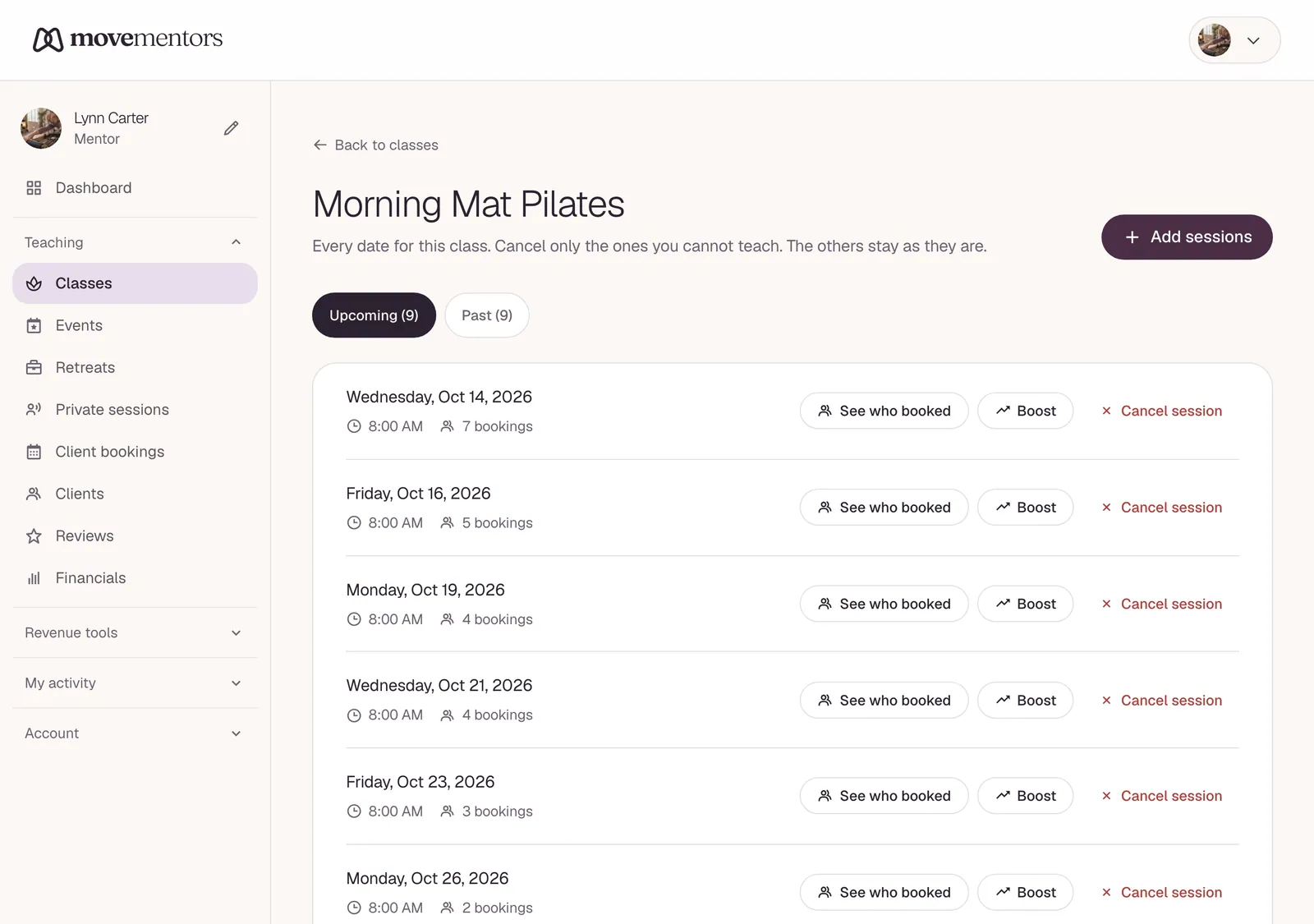
Go to the class detail page, click "Manage schedule", and add the date to the blackout list.
Blackout dates affect future sessions only. Past sessions with bookings on them are preserved.
Adding a one-off session to a recurring class
You can add an extra session to a recurring class without changing the recurrence rule:
- Open the class.
- "Add session" → pick a date.
- The new session appears in the upcoming list as if it were part of the recurrence.
Use for: an extra session over a holiday week, a make-up class, a special event tied to the same class brand.
Timezones
Every class has a timezone, set at creation time. Default is the mentor's profile timezone.
If you travel and teach in another timezone, set the class's timezone explicitly to where the class actually is, NOT to your travel timezone. The class start time is anchored to the class's location.
When students in different timezones view the schedule, we convert to their local timezone for display. The .ics in their calendar correctly anchors to the class's timezone.
Editing schedules with existing bookings
What happens if you edit a class that already has bookings on future sessions:
- Adding sessions: no impact on existing bookings.
- Removing sessions (via blackout): we cancel those bookings, refund per cancellation policy, email the students.
- Moving a session to a different time: we email students with the new time and update their .ics. The booking remains valid.
- Moving a session to a different date: we email students; some will need to cancel. Refunds apply per policy.
Best practice: do not move sessions inside a 48-hour window before start. Communicate first.
Capacity changes
You can change capacity on a class at any time. If you increase capacity, more bookings can come in. If you decrease capacity below the current bookings, existing bookings are not cancelled; new bookings are blocked until existing bookings drop below the new capacity.
Minimum lead time
Some mentors do not accept last-minute bookings. The class settings have a "minimum lead time" field: bookings within this window are disabled.
Common settings:
- 0 hours (allow last-minute): default.
- 2 hours: lets you prep, blocks 10-minute-before bookings.
- 24 hours: lets you communicate before, blocks same-day bookings.
Common questions
Can I run two classes at the same time (e.g. parallel tracks)? Yes. Each class is independent. They can overlap in time. The platform does not detect or warn about scheduling collisions; that is your responsibility.
Can I copy a recurring schedule from one class to another? Not directly. Duplicate the class (which copies the schedule template), then edit the title/description/price for the new class. Quicker than building twice.
My recurring class shows ONE session in the directory. Where is the rest of the schedule? The directory card shows the next upcoming session. Click into the class detail page to see the full upcoming schedule (and pick any date to book).
What happens to bookings on a class I deactivate? Past bookings stay in the record. Future bookings are cancelled with full refunds (because mentor-initiated). The class disappears from the directory; the URL still works but says "this class is no longer running".
Next steps
- Managing bookings: what to do as bookings come in.
- Calendar sync for mentors: keep your MoveMentors schedule in your existing calendar.