There are three ways to work with a studio on MoveMentors. Pick the one that matches your real arrangement:
- You teach the studio's classes, and the studio collects payment: the studio invites you to its instructor roster as an employee.
- You run your own classes in the studio's space, and your students pay you: you join the roster as a renter, or rent a room. See Renting studio space.
- You want a studio credited on one of your own classes: co-list the class with the studio.
Teaching at a studio: the instructor roster
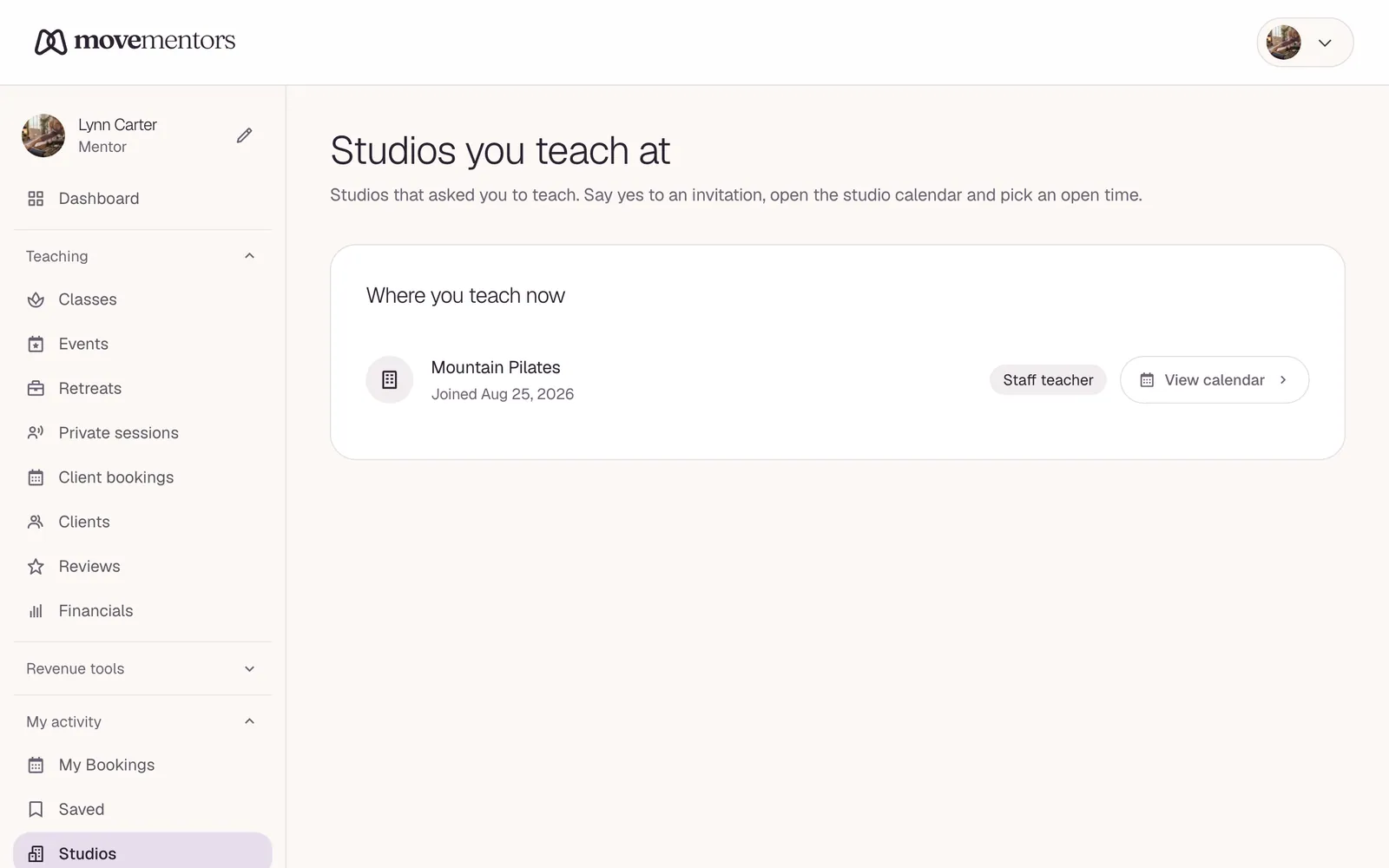
When a studio wants you on its team, it invites you to its instructor roster as an Employee (studio collects payment) or a Renter (instructor takes their own bookings). You get an email, and you accept or decline on your Studios page at /mentor/studios.
- Employee: the studio creates the classes and clients pay the studio. The studio pays you outside MoveMentors.
- Renter: you run your own classes, your clients pay you, and you pay the studio a rental fee.
As an active instructor, you can claim open slots on the studio's calendar from your Studios page. See Your instructor roster for how it works on the studio side.
Running your own classes in a studio's space
Studios that rent out their rooms show a Rent this space section on their public page, and you can list them with /studios?rentable=1. Your requests and rentals appear under My rentals at /mentor/rentals. See Renting studio space for the full flow.
What co-listing means
A class on MoveMentors has a creator (the account that made it) and can credit one co-owner.
When you create a class, the Co-list with a studio option lets you invite a studio that's on MoveMentors as co-owner. For example, you teach your own class in a studio's space and want to credit the studio.
- The class stays yours: you run it, and bookings and payments come to you.
- The studio gets a notification and accepts or declines the invitation from its dashboard.
- You get a notification when the studio answers.
- Once the studio accepts, the studio's public page lists you among the teachers who work with it.
- A class has at most one co-owner.
If the studio declines, the class simply stays on your profile on its own.
When a studio invites you to its own class
Studios can also invite a teacher to co-teach one of the studio's own classes. You'd see a "Co-teach invitation" notification, but teachers can't accept these invitations from their dashboard yet. If a studio wants you teaching its classes, ask it to invite you to its instructor roster instead: that invitation comes by email and you answer it on /mentor/studios.
What to agree with the studio first
MoveMentors doesn't set the business terms between you and a studio. Agree these directly, ideally in writing (even a chat message counts):
- Pay. Who collects the booking money, and how and when the other side gets paid.
- Schedule commitment. Are you committed to every session, or can you skip weeks?
- Cancellations. What happens if you need to cancel a session?
- Equipment and prep. Who provides mats, props and music?
- Promotion. Will the studio promote the class, and tag you?
Custom mentors
A studio can also credit a teacher who isn't on MoveMentors as a "custom mentor": a name on the studio's classes, with no MoveMentors account or profile behind it. If a studio has added you as a custom mentor but you have a MoveMentors profile, ask the studio to invite you to its instructor roster so your profile is linked. See Custom mentors.
Common questions
Can a class have more than one co-owner? No. A class has one creator and at most one co-owner. For a workshop with several teachers, create an event instead: events can credit up to four co-hosts. See Creating an event.
Can I co-list an event or a retreat with a studio? No. The studio option is only offered for classes.
Who gets the bookings and payments on a class I co-list? You do, as the creator. The studio is credited, but the money goes to you.
Next steps
- Creating a class covers class creation, including the co-list option.
- Your instructor roster explains roster invites from the studio side.
- Renting studio space covers renting a room for your own classes.