Once your classes are live, students start booking. Your bookings list at /mentor/bookings is where you keep track of them day to day.
Booking statuses
Every booking has a status:
| Status | What it means | What you can do |
|---|---|---|
| Pending | A card payment in progress, or a request waiting for you | Card payment: nothing, it resolves on its own. Request: Confirm or Decline |
| Confirmed | The student has their spot | Before class: Cancel booking. Once class has started: Mark completed or No show |
| Completed | The class happened and the student came | Nothing more to do |
| No show | The class happened and the student didn't come | Nothing more to do |
| Cancelled | The booking was cancelled by either side | Nothing more to do |
Card bookings stay pending while the student pays on Stripe's checkout page. The seat is held for 30 minutes: the booking confirms by itself when the payment goes through, or the seat is released if it doesn't. You can't confirm or cancel a booking during that hold.
Off-platform bookings (cash, bank transfer, PayPal and the other direct methods), free bookings and bookings covered by a class pack confirm straight away. Payment is tracked separately with Mark paid.
Requests you confirm yourself: private sessions booked from your open time slots, and spots reserved for someone moving up from a waitlist. They stay pending until you click Confirm or Decline.
The bookings list
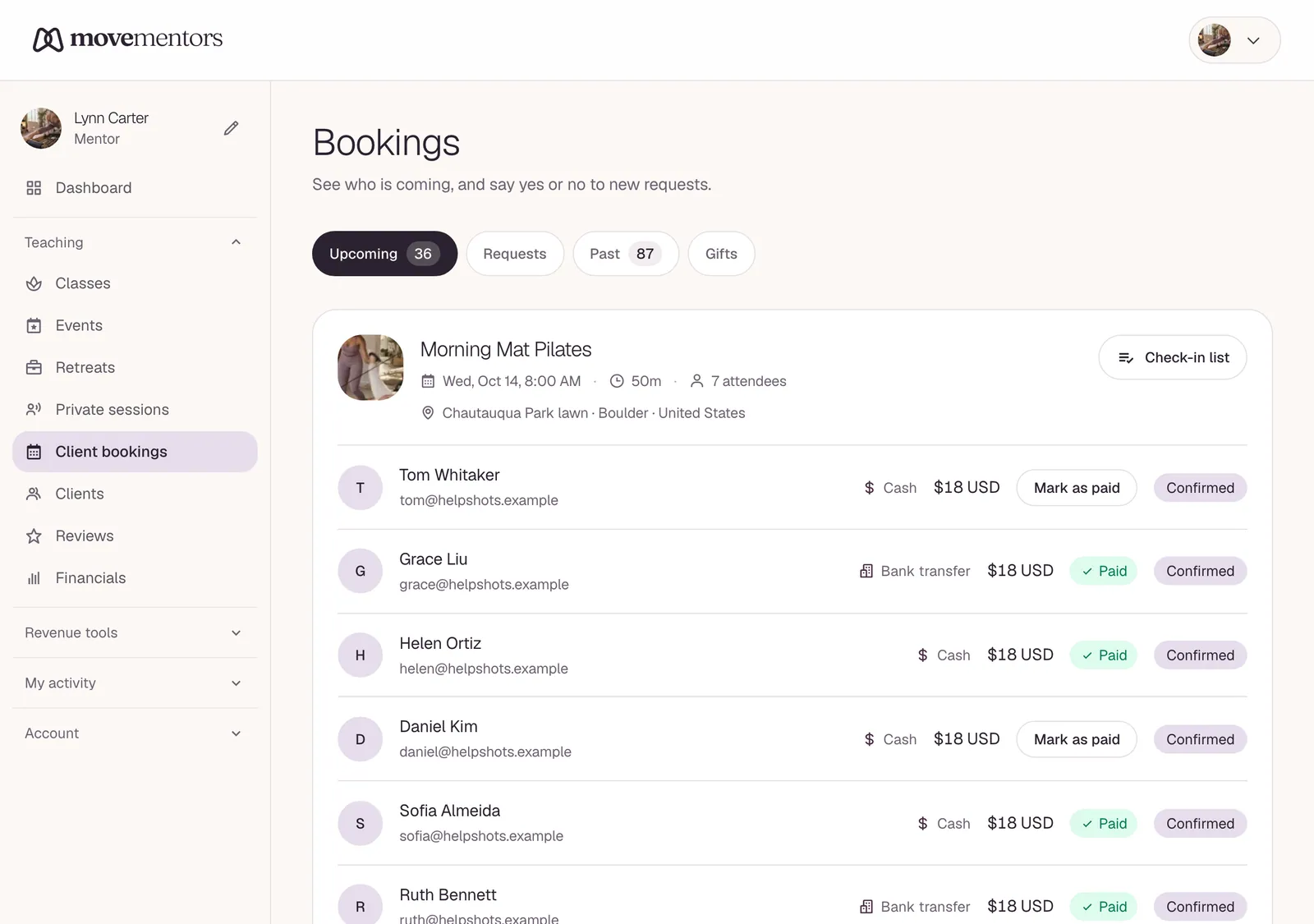
The list at /mentor/bookings has four tabs:
- Upcoming: pending and confirmed bookings for sessions still ahead.
- Pending: bookings waiting for a payment or for you.
- Past: completed, cancelled and no-show bookings.
- Gifts: classes someone has bought as a gift.
Click any booking to see the details: when it is, who booked and anyone they're bringing, the payment method, add-ons, notes from the student and the amount. For online classes, Copy link copies the meeting link.
Daily workflow
Morning check
Open /mentor/bookings and skim today's sessions:
- Check who's coming and how full each session is.
- Confirm or decline any pending requests.
- Mark paid the off-platform bookings whose money has arrived.
After each class
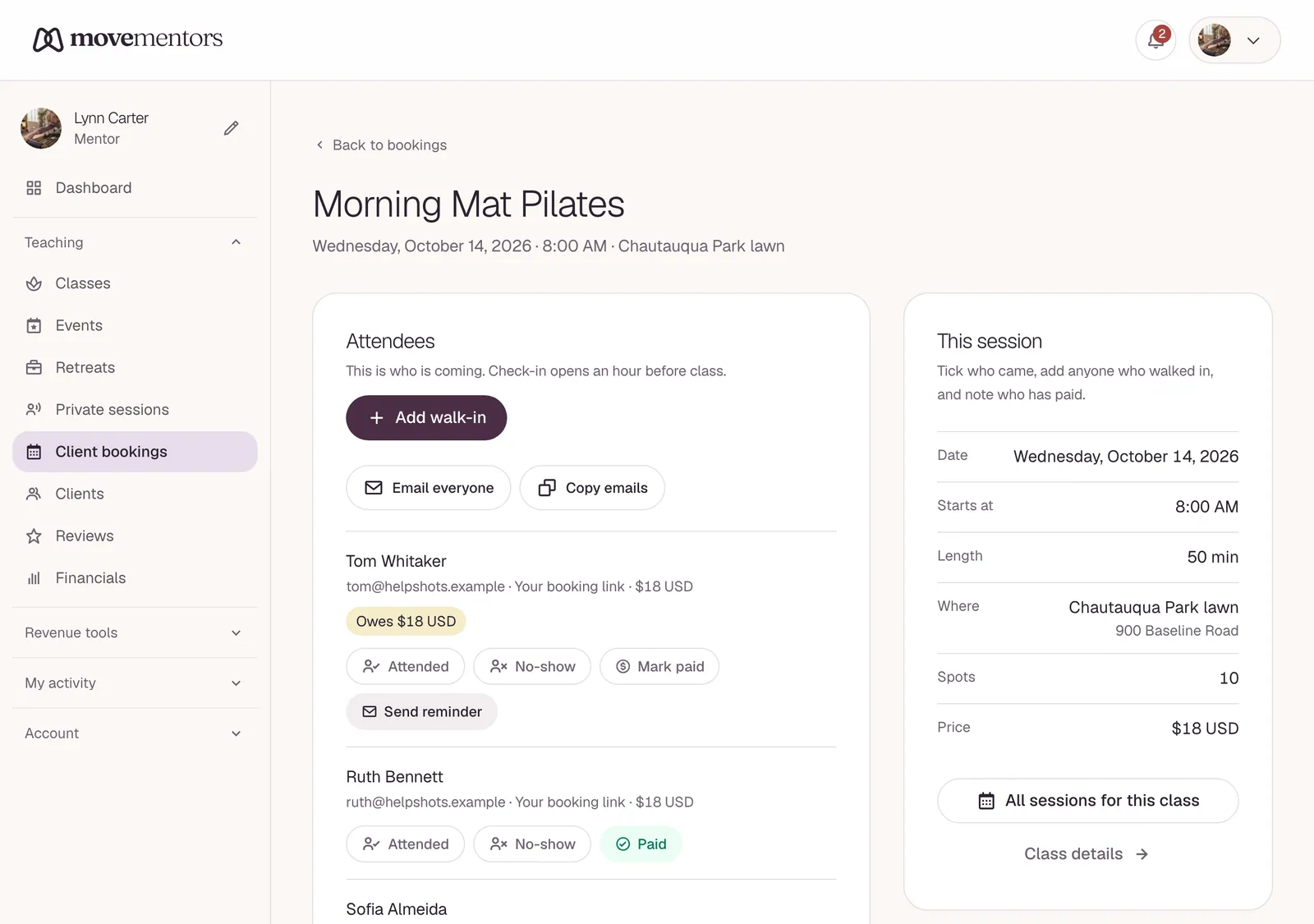
Open the session page: in My classes, open the class menu, choose Manage schedule, then click Check-in list next to the session.
- Mark each booking Attended or No-show.
- If someone paid cash on the day, click Mark paid.
- If someone turned up without booking, use Add walk-in so your records stay accurate.
Most mentors do this in a couple of minutes during the cool-down.
If you don't mark a confirmed booking, it's marked completed automatically about 2 hours after the class ends. That counts a no-show as attended, so mark no-shows before then.
A quicker way in. Every session in your bookings list has a Check-in list button. It opens the same session page in one tap, on your phone too. Studios also get there from Today on the studio dashboard.
On that page you can also:
- Mark everyone attended in one tap, then change the one or two who didn't come. Undo shows right after, in case you tapped it by mistake. The button appears an hour before class.
- Tap Attended or No-show a second time to take the mark off. You can switch between the two at any time, also after the automatic 2 hours.
- See at a glance who is on their first visit, who still owes you money, how many sessions are left on a class pack, and your own private note about a client.
- Email everyone opens a new email in your own mail app with everyone who booked in BCC, so nobody sees anyone else's address. Copy emails copies the same addresses.
If you forget. After class, a Who came? box shows at the top of your bookings page (and on the studio dashboard). Everyone came marks the whole class in one tap. Review opens the session page so you can mark who didn't come. If you do nothing, the people still unmarked count as attended about 2 hours after class, and you can still correct that later.
Weekly cleanup
Once a week:
- Look for off-platform bookings that still aren't paid, and nudge those students with Send reminder on the session page. You can also turn on automatic reminders on your Payment methods page.
- Look at next week's sessions and check the numbers look right.
Marking paid (off-platform payments)
For bookings paid by cash, bank transfer, PayPal, Venmo and the other direct methods:
- Check the money actually arrived (your bank, your app, your cash box).
- Click Mark paid on the booking in your bookings list, or on the session page.
- The booking now shows as paid. Its status doesn't change: it was already confirmed.
Don't mark paid until you've received the money. MoveMentors takes your word for it.
Card payments through Stripe are recorded as paid automatically, so they don't have a Mark paid button.
Confirming and completing
You don't confirm card or off-platform bookings: they confirm on their own. Confirm is only for pending requests (private sessions booked from your open time slots, and waitlist spots). When you confirm one, the student gets a confirmation email.
Completing is worth doing at the end of each class. MoveMentors marks confirmed bookings completed about 2 hours after the class ends, but it can't tell who didn't come.
No-shows
A no-show is a student who had a spot but didn't come. When you mark a booking No show:
- The booking moves to No show.
- Nothing is refunded automatically, and MoveMentors doesn't email the student about it.
Some mentors offer a no-show a credit toward a future class; others don't. That's your call.
Contacting students
The bookings list has no message button. To reach a student about a booking (a venue change, pre-class instructions), use the email shown for them on the session page or in your clients list, and write to them directly.
Group bookings
When a student books several seats:
- One booking covers the whole group.
- The party size and the names of the people they're bringing show in the booking details.
- There's one payment for the group, and one Mark paid covers all seats.
- Attendance is marked for the whole booking.
You can't mark one seat attended and another a no-show within the same booking. If four seats were booked and three people came, mark the booking attended (it's fine to be generous about the fourth).
Cancelling a booking
To cancel a confirmed booking before the class, open it and click Cancel booking. Students with a MoveMentors account get a notification on the site. Guests don't, so let them know yourself.
Cancelling doesn't send a refund by itself, even though the confirmation message mentions one. Your cancellation policy tells the student what they're owed, and you send it:
- Card payments: refund from your own Stripe Dashboard.
- Off-platform payments: send the money back directly (bank transfer, the same app, cash).
If the session has a waitlist, the first person in line gets a pending spot and an email saying a spot was reserved for them. Confirm it and arrange their payment. See Booking waitlists.
Moving a booking to another session
Students move their own bookings: Move booking opens Move this booking, where they pick another upcoming session of the same class. They can do this while the cancellation window is still open. To let them move inside the window too, tick Allow last-minute reschedule on the class.
Edge cases
A student paid by card but you marked them a no-show. They're asking why they paid. They paid because they booked; a no-show doesn't change that. You can refund them from your Stripe Dashboard as a goodwill gesture, but you don't have to.
It looks like a session has more bookings than seats. MoveMentors checks a session's capacity, counting every seat in a group booking, before it accepts a booking. If something still looks wrong, take a screenshot and email support@movementors.com.
A student insists they paid cash, but you don't remember. Awkward. If they have a receipt or a screenshot, ask for it. If you can't prove otherwise, give them the benefit of the doubt.
Common questions
Can pending requests confirm automatically? No. Private session requests and waitlist spots wait for you, so you stay in control of your time and payments. Card and off-platform bookings already confirm without you.
Can I mark a whole session completed at once? No. Mark each booking on the session page. Anything you don't mark is marked completed about 2 hours after the class ends.
The booking shows the wrong number of people. Check the party size in the booking details. A booking for four seats shows 4 people: the booker plus three guests.
Can I export bookings to a spreadsheet? Yes, on the Pro and Premium plans: Export CSV on the Financials page downloads your bookings for any time window. See Exporting your earnings to CSV.
Next steps
- Clients (CRM) covers the longer-term relationship with regular students.
- Financials and expenses covers the money side.
- Refunds covers refunds in more detail.