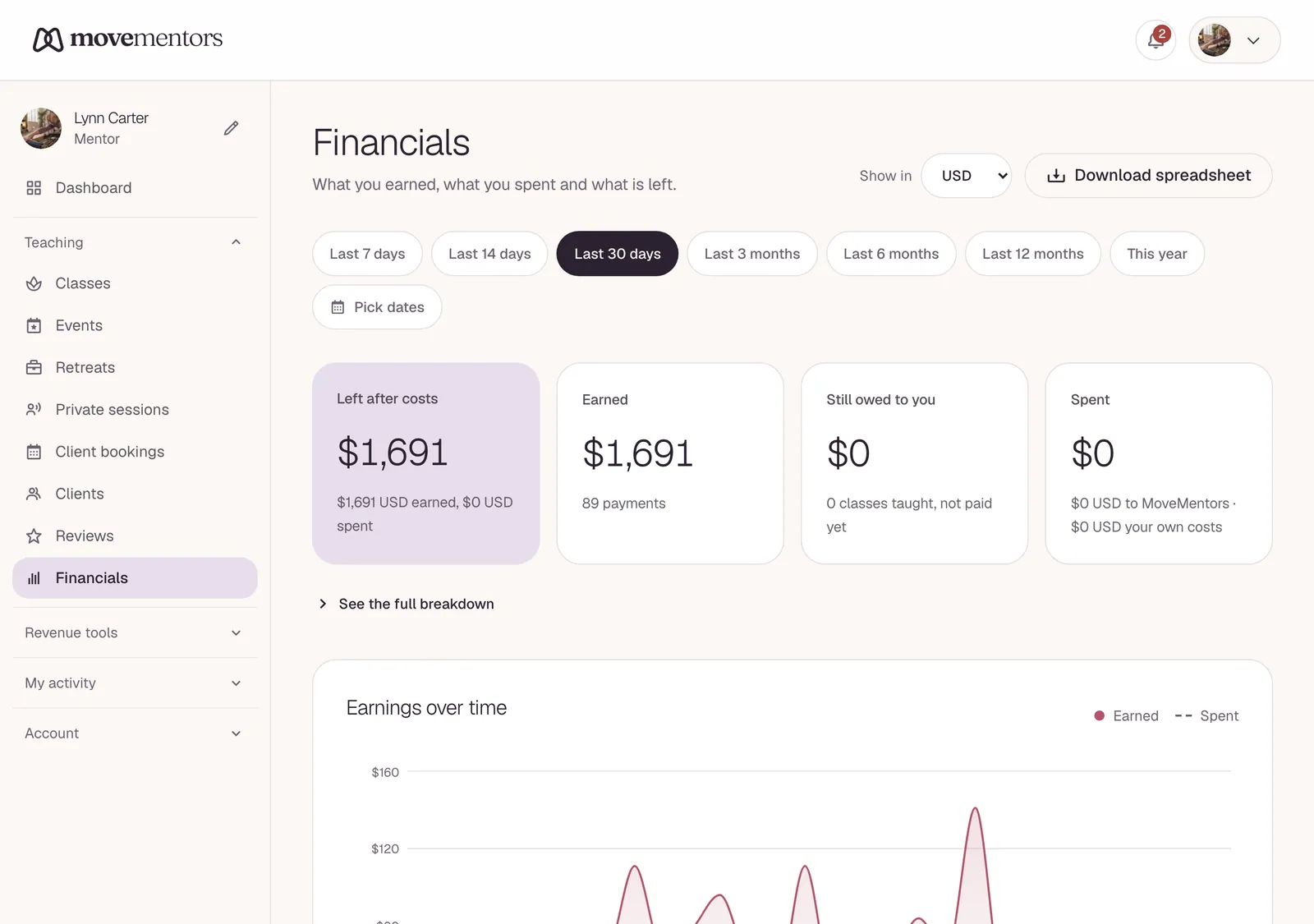
The Financials page at /mentor/financials is your business overview: what your classes earn, what you spend, and what's left. It's available on the Pro and Premium plans; on Free, the page shows an upgrade message instead.
Pick a time window
At the top of the page, choose Last 7 days, Last 14 days, Last 30 days, Last 3 months, Last 6 months, Last 12 months, This year, or Custom to set your own dates. Everything on the page follows the window you pick.
Display in sets the currency for the totals. Amounts in other currencies are converted at current mid-market exchange rates, so treat converted totals as approximate.
The dashboard at a glance
The summary cards at the top:
- Net P&L: earned revenue minus expenses.
- Earned revenue: money from completed, paid bookings.
- In the pipeline: confirmed bookings for sessions still ahead.
- Awaiting payment: completed bookings that still owe you, usually off-platform payments you haven't marked paid yet.
- Expenses: your MoveMentors charges plus the expenses you log.
- Bookings: bookings completed in the window.
- Avg booking: what you earned per completed booking.
Below the cards:
- Revenue over time: daily earnings and expenses.
- Revenue by programming kind: how your earnings split across classes, events, retreats and private sessions.
- Top earning classes: the six classes that brought in the most.
- Where bookings came from: revenue by booking source.
What counts as earnings
- Card payments: bookings paid through Stripe count as paid automatically.
- Off-platform payments: bookings paid by cash, bank transfer, PayPal and so on count once you click Mark paid.
- Add-ons booked with a class are included.
- Membership payments and retreat payment plans count when each payment is made.
Amounts are booking prices. Stripe's processing fee isn't taken off here; your Stripe Dashboard shows fees and payouts.
Expense tracking
Two kinds of expenses feed your totals:
- MoveMentors charges, added for you: your subscription and any boosts.
- Your own expenses, which you log: studio rent, equipment, insurance and anything else your teaching costs you.
To log an expense:
- On the Financials page, click Add expense.
- Fill in What was it for?, Amount, Currency and Date.
- Pick a Category: Studio rent, Equipment, Marketing, Insurance, Travel, Supplies or Other.
- Optionally attach it to a class session, or leave it as general overhead.
- Click Save.
The expense counts toward your totals straight away. You can Edit or Delete it later; deleting only removes the entry from your reports.
Payouts and Stripe fees
MoveMentors never holds your money. Card payments go straight to your own Stripe account, and Stripe pays out to your bank on the schedule you set there. To match a payout to its bookings, or to see Stripe's fees, use your Stripe Dashboard.
Exporting to CSV
Click Export CSV to download the bookings behind the selected window as a spreadsheet: one row per booking, with the session date, class, attendee, status, amount, tip, currency, payment method and whether it's paid. See Exporting your earnings to CSV for the full list of columns.
The export covers bookings. Your logged expenses stay on the Financials page.
Keeping off-platform payments up to date
Card payments are recorded automatically. Off-platform payments depend on you: until you click Mark paid, a completed booking shows under Awaiting payment instead of earned revenue.
A simple monthly habit: go through your off-platform bookings that still aren't paid, mark each one paid once the money has arrived, and nudge the rest with a payment reminder.
Tax forms
Card payments run through your own Stripe account, so if a tax form applies to them (a 1099-K in the US, for example), look for it in your Stripe Dashboard. The rules and reporting thresholds change, so check the current ones with Stripe or your tax adviser.
Outside the US, your local tax rules apply, and the CSV export gives you the booking records you need.
See Tax forms and 1099 for more.
Sharing financials with an accountant
1. CSV export
The cleanest option. Export monthly, quarterly or yearly and send the file to your accountant.
2. Stripe access
Your Stripe account has its own team settings, so you can give your accountant access to your Stripe Dashboard there, separately from MoveMentors.
Best practices
- Log expenses as you go. A few seconds at the time beats an end-of-year scramble.
- Keep your receipts. MoveMentors doesn't store receipts, so keep them in a folder or your accounting app.
- Categorise consistently. Pick the categories you use and stick with them.
- Check in monthly. Mark off-platform payments paid, log the month's expenses, and look over your Stripe payouts.
- Review the year. Once a year, pick This year or a Custom window, fix any miscategorised expenses, and export the CSV for your accountant.
Common questions
Why doesn't my earned revenue match my Stripe balance? Earned revenue counts completed bookings in the window you picked, before Stripe's fees. Your Stripe balance reflects fees, refunds and Stripe's payout schedule.
Can I edit a past booking's payment amount? No. The Financials page reflects your bookings as they were made.
Can I leave out a booking that isn't business income (a friend who paid as a favour)? There's no setting for that. You can log a matching expense to offset it.
The dashboard says I made more than my bank shows. Why? The most common reasons:
- Stripe's fees: your bank receives payouts after fees, while the Financials page shows booking prices.
- Payout timing: today's card payments aren't in today's bank deposit.
- Refunds you sent from your Stripe Dashboard: they reduce what Stripe pays out, but the booking can still show in your earnings.
Next steps
- Exporting your earnings to CSV: the columns in the file.
- Tax forms and 1099: the year-end tax picture.
- Accepting payments: which methods feed your financials.