You decide which payment methods to accept, on every plan, Free included (compare plans). MoveMentors takes 0% commission on class payments and never holds your money: card payments go straight to your own Stripe account, and every other method goes directly from the student to you.
Recommended starting point: Stripe for cards plus one off-platform fallback (cash or bank transfer). Cards give you a fast, automatic path, and the fallback covers students who would rather not pay by card.
You set all of this up on the Payment methods page at /mentor/settings/payments.
The full menu
| Method | When the booking confirms | Fees you pay | Your effort per booking |
|---|---|---|---|
| Card through Stripe | When the payment goes through | Stripe's processing fee | None (automatic) |
| Card in person | Straight away | Your card reader's fees | Mark paid after class |
| Bank transfer | Straight away | Set by your bank | Mark paid when the money lands |
| PayPal, Venmo, Cash App, Zelle, Wise | Straight away | Set by the provider | Mark paid when the money lands |
| Cash | Straight away | None | Mark paid on the day |
| Crypto | Straight away | Network fees | Mark paid when the transfer arrives |
| Other | Straight away | Your choice | Mark paid when you're paid |
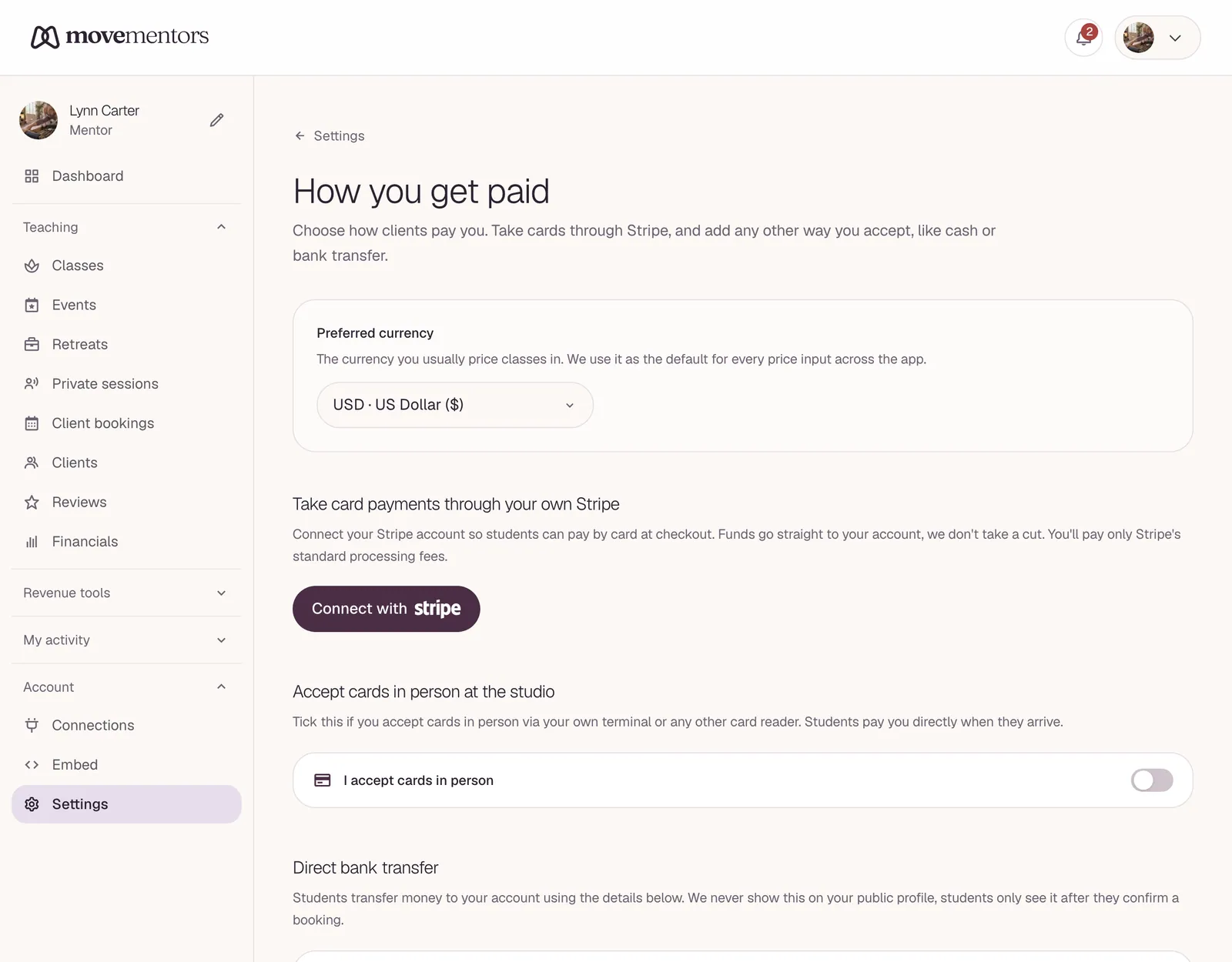
Card payments through Stripe
The fastest and most professional path. You connect your own Stripe account once, and students pay by card on Stripe's secure checkout page when they book.
Setup:
- On the Payment methods page, under Take card payments through your own Stripe, click Connect with (the button ends with the Stripe logo).
- Stripe asks for your personal and business details and the bank account for your payouts. It may ask for ID.
- Once Stripe approves your account, students can pay by card when they book.
It's a standard Stripe account in your name, so you also get your own Stripe Dashboard for payouts, refunds and reports.
How a card booking works:
- The student picks a session and pays on Stripe's checkout page.
- Their seat is held for 30 minutes while they pay. The booking shows as pending, and their booking page says "Finish paying to confirm your spot".
- When the payment goes through, the booking confirms and the student gets their confirmation email.
- If they don't finish paying, the seat is released automatically. Nothing is charged and no email is sent.
You can't confirm or cancel a booking during that 30-minute hold. It resolves on its own either way.
Where the money goes: straight to your Stripe account. Stripe takes its processing fee (about 2.9% plus 30 cents in the US; it varies by country) and pays out to your bank on the schedule you set in Stripe. MoveMentors takes nothing.
You never see card numbers. Students enter their card on Stripe's page, and Stripe handles the card data.
See Stripe Connect setup for the full walkthrough.
Card in person
Tick I accept cards in person if you take cards at class with your own card reader. Students then see "Card in person" as a way to pay, and they pay you when they arrive.
This suits students who want to pay by card but would rather do it on the day. The booking confirms straight away; click Mark paid once you've taken the payment.
Bank transfer
Common outside the US. The student sends the money to your bank account.
Setup: tick I accept bank transfer, choose the currency, and fill in your account details.
Your bank details never show on your public profile. Students only see them after they book, with their booking confirmation.
Pros:
- No fee from MoveMentors.
- Works well for students who are used to paying by bank transfer.
Cons:
- Transfers can take a few business days, longer between countries.
- You check your bank and mark the booking paid yourself.
- If a student says "I sent it" and you mark it paid without checking, you carry the loss.
Recommended: mark paid only when the money has actually landed in your account, not when the student says they sent it.
PayPal, Venmo, Cash App, Zelle and Wise
Add the handle you want students to use for each one: your PayPal email or PayPal.Me link, your Venmo @handle, your Cash App $cashtag, the email or phone number for Zelle, or your Wise tag or link. Students see the handle with their booking confirmation, send the money from their own app, and you mark the booking paid when it arrives.
Each provider sets its own fees and rules, including for payments for a service. Check them before you pick one, and avoid personal transfer options that aren't meant for paying a business.
Refunds: send the money back from the same app.
Cash
Tick I accept cash. Students see "Cash" as a way to pay, and they pay you at class.
Workflow:
- The student books and picks cash.
- The booking confirms straight away.
- The student comes to class and pays you.
- You open the booking and click Mark paid.
Recommended for:
- Drop-in classes where many students pay on the day.
- Casual community classes.
- New mentors trying the platform before setting up Stripe.
Caveat: nothing commits a cash booker up front, so no-shows cost you more. Some mentors only take cash from regulars.
Crypto
Tick I accept crypto and add a wallet address for each network you accept (Add another wallet for more). Students see your addresses after they book and send the payment from their own wallet. Check that the transfer has arrived, then mark the booking paid.
Considerations:
- Network fees are paid by whoever sends the transfer.
- Prices move, so the value that arrives may not match the class price exactly. Decide how close is close enough.
- Refunds: say up front whether you refund the same number of tokens or the same value in your currency.
If none of your students ask to pay in crypto, you can skip it.
"Other" payment method
If you use something that isn't on the list (a local payment app, vouchers, gift cards), add an Other payment method with a name and instructions.
Students see your instructions after they book and follow them. You mark the booking paid as with any other off-platform method.
A note for your students
Optional. Add anything students should know about paying: your preferred method, a deposit policy, how refunds work. Students see it with your payment details.
Off-platform payment reminders
Turn on Send reminders automatically and MoveMentors emails students who still owe you for an off-platform booking. They get up to four reminders: 24 hours after booking, 3 days after, 1 day before the class and 1 day after it. Reminders stop as soon as you mark the booking paid or it's cancelled.
You can also nudge one student yourself with Send reminder on the session page.
Refunds
Cancelling a booking doesn't send a refund by itself. Your cancellation policy tells the student what they're owed, and you send it:
- Card payments: refund from your own Stripe Dashboard.
- Off-platform payments: send the money back the way it came (bank transfer, the same app, cash).
See Refunds for more.
Recommended setup by mentor profile
Independent yoga teacher in the US:
- Stripe: yes.
- Cash: yes.
- Venmo: yes.
Yoga teacher in Europe:
- Stripe: yes.
- Bank transfer: yes.
- PayPal: optional, depending on your students.
Brand new mentor, no Stripe yet:
- Cash: yes.
- Bank transfer: yes, if you have an account you're happy to use for payments.
- PayPal: yes, if you have an account.
- Add Stripe when you're ready. Paid online classes, class packs and memberships need it.
Common questions
Can I take only card payments and turn off everything else? Yes. Leave all the off-platform methods unticked and students only see the card option. Some students prefer not to pay by card, but you have less to track.
Can I require a deposit and take the rest in cash on the day? Not as a built-in option. A common workaround: set the class price to the deposit, and write "Balance due in cash at class" in the class description and in your note for students. Retreats on Premium can split the price into 2 to 6 card payments instead; see Retreat payment plans.
Why is a card booking still pending? The student hasn't finished paying. The seat is held for 30 minutes: the booking confirms on its own when the payment goes through, or the seat is released if it doesn't. You can't confirm or cancel it in the meantime.
A student paid me in cash, but the booking doesn't show as paid. Open the booking and click Mark paid. The booking was already confirmed; Mark paid records that the money arrived.
Can students add a tip? Yes. Every paid booking offers an optional tip, whatever the payment method, and all of it goes to you. See Tipping.
Stripe says my account is restricted. What do I do? See Stripe Connect verification stuck.
Next steps
- Stripe Connect setup: detailed walkthrough.
- How payments work: how money moves on MoveMentors.
- Managing bookings: the dashboard workflows you use every day.