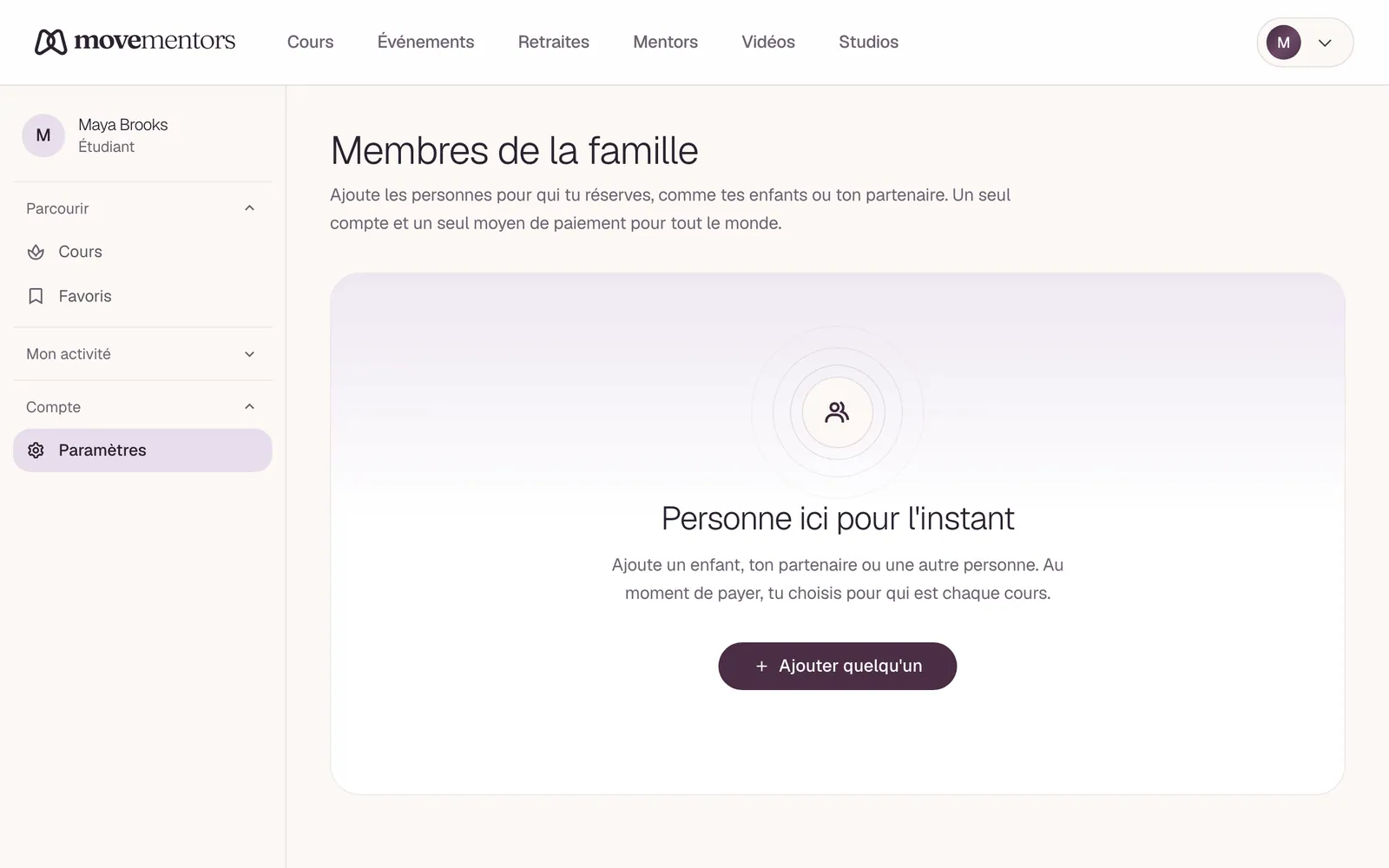
Tu peux réserver des cours pour les personnes dont tu t'occupes, comme tes enfants ou ton ou ta partenaire, sans créer un compte séparé pour chacun. Ajoute-les comme membres de la famille sur ton compte MoveMentors, puis choisis pour qui est chaque réservation au moment de réserver. Tout le monde est géré avec ta seule connexion.
Ajouter un membre de la famille
- Va dans Paramètres et ouvre Membres de la famille.
- Choisis Ajouter un membre.
- Saisis son Nom. Tu peux aussi ajouter un lien de parenté (par exemple "Fille"), une date de naissance, cocher Cette personne est mineure, et ajouter des notes.
- Choisis Enregistrer.
Tu peux ajouter jusqu'à 25 membres, et les modifier ou les retirer à tout moment.
Réserver pour un membre de la famille
Quand tu réserves un cours, un événement ou une retraite en étant connecté, tu vois Pour qui est-ce ?. Choisis Moi-même ou un membre de la famille, puis termine la réservation normalement.
Le mentor voit le nom du membre de la famille sur sa liste, donc il sait qui vient au cours, tandis que la réservation, le paiement et la confirmation restent à ton nom.
Les membres de la famille ne peuvent pas être choisis pour les séances privées réservées sur les disponibilités d'un mentor.
Notes sur un membre de la famille
Le champ Notes pour les mentors (facultatif) sert à des choses comme "blessure au genou, préfère l'avant de la salle". Ces notes restent sur ton compte et ne sont pas montrées au mentor sur les réservations. Si quelque chose compte pour un cours, ajoute-le dans Notes pour le mentor (facultatif) sur le formulaire de réservation, ou dis-le directement au mentor.
Retirer un membre
Retirer un membre l'enlève de ta liste Pour qui est-ce ?. Ses réservations passées restent intactes, donc ton historique et les données du mentor ne changent pas.